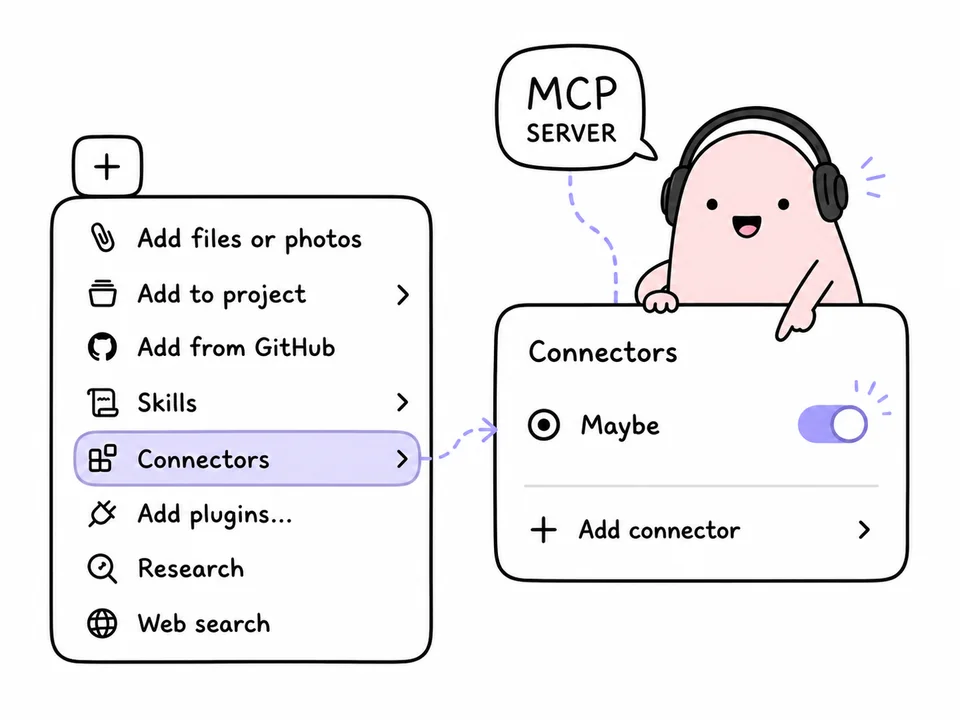
For an AI to help with your actual work instead of handing out generic advice, it needs your actual task list. In Maybe that takes one step: paste https://app.maybe.do/mcp into Claude (or Cursor, or any other MCP-capable client), sign in with your Maybe account, and the assistant can see your tasks. The assistant can read your tasks, add new ones to Plans and move tasks from Plans to Later. It cannot delete tasks. There are no Client IDs or secret keys to enter.
TL;DR
- Maybe's MCP server address is
https://app.maybe.do/mcp. Nothing else to type in. - Setup takes a minute: add the connector → sign in with your Maybe account → confirm access.
- The AI can read tasks, add new tasks to Plans and move tasks to Later. Deletion is deliberately unavailable; the "do I want this more?" call stays yours.
- Works with any MCP client, not just Claude. Requires a Maybe Pro subscription.
What MCP is and why your task list needs it
Model Context Protocol is an open standard that lets AI clients connect to outside data sources. Before it, discussing your workload with an assistant meant pasting the list into the chat by hand — and a day later that paste was stale. MCP removes the copy-paste: the assistant pulls your current tasks mid-conversation.
Maybe runs its own MCP server, so the integration isn't tied to one app. Claude, Cursor and any other client that speaks the protocol connect to the same address.
The assistant gets six tools: tasks by status (active, later, completed, archived), your current In Progress session, search across task titles, stats for a date range, creating tasks in Plans, and moving tasks to Later.
Add tasks and set others aside
Ask Claude to add one task or a list of tasks. New tasks go to the end of Plans, in the order you give them. They cannot be created directly in Later or In Progress.
You can also ask it to move tasks from Plans to Later. Tasks in In Progress, completed tasks and archived tasks are skipped. The assistant cannot edit titles, reorder tasks, mark them complete, archive them or delete them. These limits are deliberate: it helps with the list while you keep control of what to work on.
How to connect Maybe to Claude
The address is the same everywhere: https://app.maybe.do/mcp. You can copy it straight from the app — Settings → AI (MCP) → "Connect an assistant", where there's a copy button.
Then, in Claude:
- Open Settings → Connectors → Add custom connector.
- Paste
https://app.maybe.do/mcpand tap Add. - In the connectors list, tap Connect.
- Sign in with your Maybe account (Apple or Google) and confirm access.
That's it — the task tools show up in your chat. Claude calls them on its own whenever a question needs them, so there are no special commands to memorise.
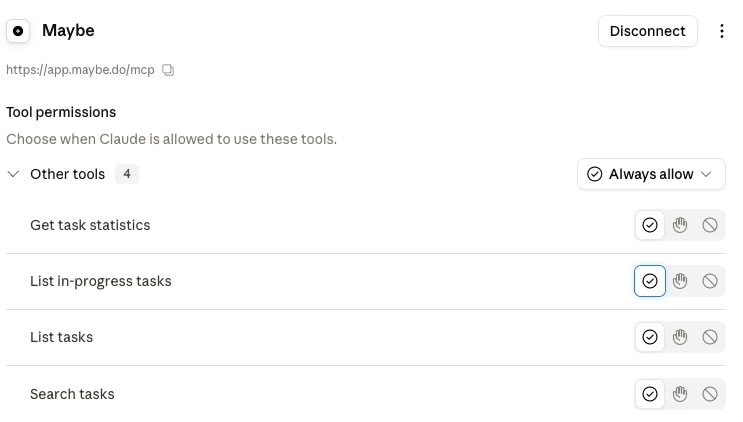
This screenshot was taken before the update and shows the four reading tools. The current connector also has Create tasks in Plans and Move tasks to Later. There is still no delete tool. If an older connection asks you to reconnect before using the new tools, reconnect it and confirm access.
Other clients: Cursor and the rest
Same routine: find wherever the app asks you to add an MCP server, paste the same address, and sign in. There's no client-specific configuration — the server announces its own capabilities on connect.
What to ask the assistant if you work by FVP
Maybe is built around the FVP method: you move down your plan from the anchor and pick a task only if you can say "I want to do this more than the one I already picked." No AI can answer that for you — the wanting is yours, and that's the whole point of the method. What it does help with is everything around the pass: preparing the list, cracking the anchor, and seeing what came of it.
Clear the plan before a pass. "Group my active tasks by topic and show me where several entries mean the same thing." The shorter and more honest the list, the faster you move through it on "want." A plan that's grown to a hundred lines turns into a task graveyard, and the pass gets exhausting before you ever reach the anchor.
Deal with the anchor. The first task in your plan is the oldest one, the one you can no longer ignore. It usually sits there because it's too big. "Here's my first active task — break it into 3–4 small steps I can actually start with." A small step is easier to want.
See what's stalling. "Which tasks have been sitting in my active list the longest, and what do they have in common?" Tasks you skip over on every pass are a signal: either the wording is vague, or they belong in Later.
Get the current chain moving. "What's in progress right now? Sketch a 20-minute plan for the first one." You built the order in In Progress yourself — the assistant doesn't reshuffle it, it just helps you start the next thing faster.
Review your week. "How many tasks did I close in the last 7 days and what were they? Which themes repeat?" What you finished shows what you actually had energy for — more interesting than a count of closed items.
Add tasks from the conversation. "Add these to Plans: send the draft, book the hotel, call the accountant." The tasks appear at the end of your plan.
Set something aside. "Move ‘Book the hotel’ to Later." The task stays in Maybe, in the Later list.
Pull context for a meeting. "Find all my tasks about project X and turn them into a short summary." Search runs over your own titles, so the summary comes from real work rather than generalities.
Prompts you can paste as-is:
- "Group my active tasks by topic and find duplicates."
- "Take the first task in my plan and break it into small steps."
- "What's in progress right now? What's the easiest thing to start with?"
- "What did I complete this week? Break it down by day and by theme."
- "Which active tasks should have moved to Later long ago?"
- "Add ‘Send the draft’ to Plans."
- "Move ‘Book the hotel’ to Later."
How safe is this
The assistant can read your tasks and make two specific changes: add to Plans and move from Plans to Later.
- Limited changes. New tasks are appended to Plans. Only active tasks outside In Progress can move to Later.
- No deletion, by design. There is no delete tool. The assistant also cannot edit titles, complete, archive or reorder tasks.
- Your data only. Every request is filtered by the user id inside the token. Other people's data, passwords and tokens are out of reach by design.
- Signed in with your account. Authorisation runs over OAuth 2.1 with PKCE, through the same Apple/Google sign-in as the app. The address you paste is public — no secrets to hand over.
- Revoked in one click. Remove the connector in your AI client's settings and access stops.
Wrapping up
One address field, a sign-in you already have — and the assistant stops giving generic advice, because it sees your real plan. The "want" call stays yours: the AI clears the list before a pass, helps crack the anchor, and shows what came out of the week. Your tasks stay exactly where they were — in Maybe.
Frequently Asked Questions
Do I need a subscription to connect my tasks to an AI?
Yes, MCP access is part of Maybe Pro. You can set up the connection at any time, but tasks are only served to the assistant while the subscription is active.
Will the AI pick tasks for me?
No, and that's deliberate. In FVP you move down the plan and choose a task by asking "do I want to do this more than the one I already picked" — only you can answer that. The assistant helps around it: clearing the list before a pass, breaking a big anchor into steps, reviewing results.
Can the AI create tasks or move them to Later?
Yes. It can add new tasks to the end of Plans and move active tasks from Plans to Later. Tasks in In Progress, completed tasks and archived tasks cannot be moved this way.
Can the AI delete tasks?
No. Deletion is deliberately unavailable through MCP. The assistant also cannot edit titles, mark tasks complete, archive them or change their order.
Does this work with clients other than Claude?
Yes. MCP is an open standard, so any client that supports it will do: Cursor, other AI editors, desktop assistants. The address is the same everywhere — https://app.maybe.do/mcp.
Do I need to enter a Client ID, key or token?
No, just the server address. Client registration happens automatically, and you sign in with your regular Maybe account (Apple or Google) on the consent screen.
I built Maybe so that your task list reflects the real state of things instead of turning into a dump. Now you can share that state with an assistant: the connection address lives in Settings, under AI (MCP).